GPT-6 and Intelligent UI: what customers will expect from your website and app
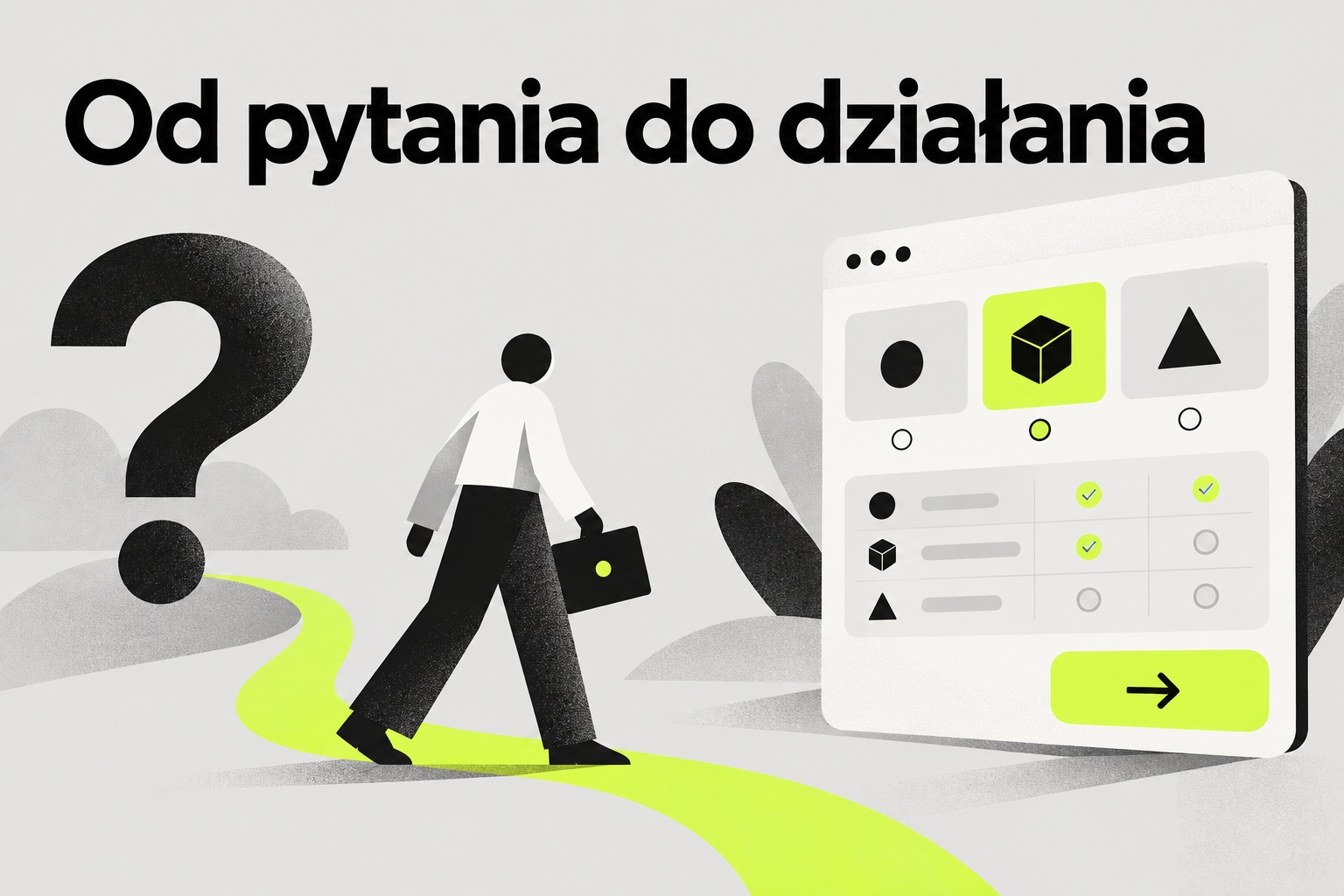
Someone lands on a company website because they want to know what a service costs. They find a few subpages, a generic price list, and a contact form. They still have to work out on their own which offer fits their situation, and what to actually ask for.
Now picture a different experience: the customer picks the scope of work, sees rough options side by side, compares them, and sends an inquiry with the chosen parameters already attached. The information leads straight to an action.
That shift in how we think about interfaces is worth considering now that GPT-6 has launched with Intelligent UI. It doesn't mean every website needs a chatbot. It means it's worth asking: what is the customer actually trying to get done, and how can we help them do it in one place?
What changed in ChatGPT?
OpenAI announced on October 7, 2026 that GPT-6 in ChatGPT can combine text, images, and interactive elements in a single answer. Depending on the question, a user might see a chart, a form, buttons, or a tool — a savings calculator, for example. When plain text is enough, the answer can still stay plain text.
For the user, this has a practical effect: they can change inputs, check a variant, and take the next step without shuttling information between several places. It changes the habits of people who use ChatGPT, but it isn't a study of what customers expect from a company's own website.
The feature is rolling out gradually in the Chat tab, so not every user sees it yet. OpenAI's announcement on its own doesn't prove that every website and app should work like ChatGPT. What it does offer is a good starting point for reviewing your own interface.
What does an answer you can act on right away look like?
Picture a company that installs technical systems. A customer asks: "Which option would suit my building?" The article itself can explain the available solutions, but it still leaves the customer to do the work of choosing. A more useful view would let them enter a few relevant details, line up the possible options, and show what information is needed to prepare a quote.
In a support ticketing app, a similar task might be checking the status of a case. The user should see what stage it's at, what's missing, and what they can do right now. If a document is needed, a button to upload it is worth more than a long description of the procedure.
Even a simple service page can answer a question with an action. Instead of sending the customer from "Services" to "FAQ" and then to "Contact", you can show a short selection of needs, the matching service, and a form with the inquiry's subject already filled in. The customer can still read the details, but they also know the next step.
Start with one customer task
When planning a website or app, it's worth first picking one situation that regularly trips customers up. That could be choosing a service, estimating the scope of a project, booking a time slot, comparing packages, or submitting information for a request.
Then describe that situation in a plain sentence: "The customer wants to check which service option fits their needs and ask for a quote." That's a better starting point for design than a list of features like "a form, some tabs, and a user panel." Features should follow from the task, not the other way around.
Check how the customer handles this task today. How many times do they have to go back to an earlier page? Do they retype the same data in a different place? At what point do they contact the company just to clarify something the interface could have shown them outright? It's worth reviewing support tickets, messages, and the questions that come up in sales calls.
From there, you can design one better view: a short context, the fields you need, a result, and a clear action. The result might be a rough comparison, a summary of the choice, or a list of missing information. The action might be sending a brief, booking a call, or saving a configuration. If the result is only an estimate, say so clearly and show what the final price depends on.
A good experience doesn't need AI everywhere
An interactive view can often be built on plain rules, your own company data, and a well-designed form. AI earns its place when you need to make sense of a loosely described problem, pull together a lot of information, or prepare a summary for an employee. The choice of technology should follow from the task, the quality of the data, and how much it matters that the answer is correct.
An example from e-commerce shows how much the flow of a task alone can matter. In a Baymard Institute study, 17% of surveyed US online shoppers said they had abandoned an order in the past quarter because the checkout process was too long or too complicated. That's a result from US e-commerce specifically, and shouldn't be applied to every industry as-is. Still, it's a reminder to check where your current process gets in the way of the task before adding a new feature.
In an interactive form, the basics still matter too. The user should know what information you need, what happens after they click, and how to fix a mistake. Success Criterion 3.3.1 of WCAG 2.2 requires that an automatically detected error be identified and described in text. A polished interface won't help much if the customer gets stuck submitting a request.
What does this mean for your business?
Intelligent UI is a signal that an answer can double as the place where a task gets done. For a company, the practical step is smaller than a full site rebuild: pick one recurring customer need and check whether your current website or app actually helps someone go from question to action. Then design one better view and test it with real users.
If you're planning a website, an app, or an automation, describe the problem in the MyEsAi brief form. We'll talk through a possible solution, the scope of work, and pricing.